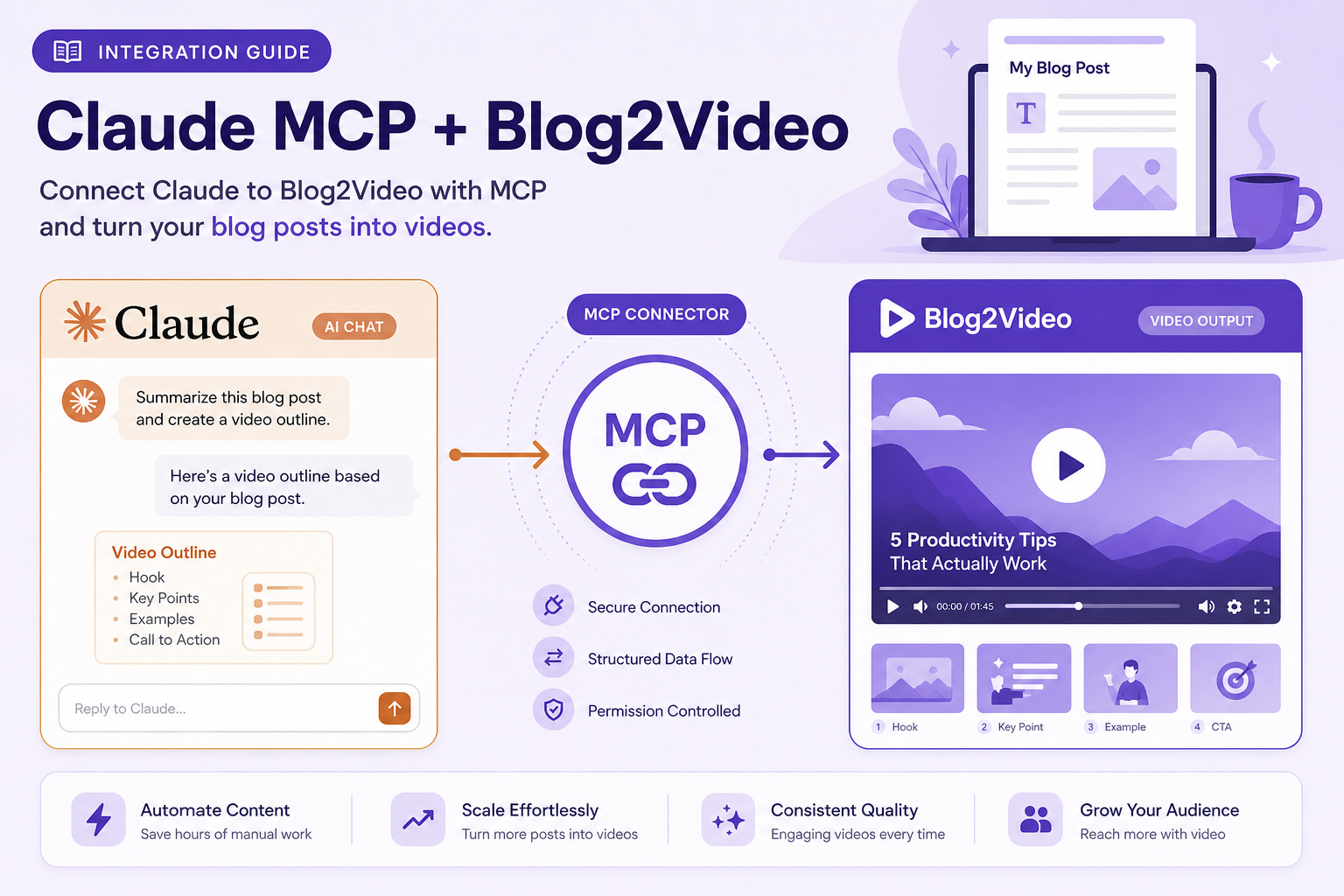
Integration guide
Claude can turn your blog into a video. Here is how to connect it.
Anthropic built MCP — so Claude has first-class support for it. Add the Blog2Video server to Claude Desktop or use it as a connector in claude.ai, and Claude can scrape articles, generate scripts, pick templates, and hand back preview links without leaving your conversation.
Why Claude is the natural home for MCP tools
Anthropic invented Model Context Protocol. MCP was designed to give Claude a standardized way to call external tools without custom per-tool integrations, and Claude Desktop was the first client to support it.
That means MCP tooling in Claude is mature, well-documented, and keeps improving. Blog2Video's MCP server integrates cleanly because Claude knows how to handle long-running tools, multi-step reasoning, and structured outputs — all things the blog-to-video pipeline requires.
What the Blog2Video MCP server does
The Blog2Video MCP server exposes your full video-creation pipeline as callable tools. The most useful ones in Claude are create_video, get_preview_url, setup_video, list_templates, and list_voices.
Unlike n8n, Claude has a clickable UI so the widget tools work as intended. setup_video launches an interactive gallery that walks you through template and voice selection before creating the project. list_templates and list_voices render browsable galleries instead of raw JSON.
If you prefer a direct approach, you can skip the widgets and tell Claude to call create_video with a specific blog URL and template id. Claude will handle the full pipeline and return a preview link.
Method 1: Desktop Extensions (one click)
The easiest way to add Blog2Video to Claude Desktop is through the Extensions directory. Open Claude Desktop, go to Settings → Extensions → Browse extensions. Find Blog2Video in the directory and click Install. Claude will prompt you to enter your JWT if needed, then restart to load the server.
After the extension is installed, click the + button at the bottom of any chat, then Connectors, and toggle Blog2Video on for the conversation. Your tools are ready.
Method 2: manual JSON configuration
For full control over the connection, edit claude_desktop_config.json directly. On macOS and Windows, go to Claude Desktop → Settings → Developer → Edit Config to open the file.
Add an entry under mcpServers: give it a name like blog2video, set the transport to HTTP Streamable or SSE, and include your JWT in the Authorization header. Save the file and restart Claude Desktop completely — not just the window, but the application itself.
The server will appear in the Connectors panel once Claude has restarted and successfully connected to the endpoint.
- Config file: Settings → Developer → Edit Config in Claude Desktop.
- Server key: blog2video.
- Endpoint: https://api.blog2video.app/mcp/sse.
- Auth: Authorization header with your JWT as a Bearer token.
- Full application restart required after editing the config file.
Using Blog2Video tools in Claude
With the server connected, you can have a natural conversation: paste a blog URL and ask Claude to turn it into a video. Claude will use setup_video to let you browse templates and voices, then call create_video with your selections.
You can also edit the result. Ask Claude to change the narration on scene three, swap two scene images, or switch the whole project to a different template. Each of these maps to an MCP tool Claude can call directly.
When you are happy with the preview, ask Claude to render it to an MP4 download link. The render takes three to eight minutes; Claude will wait and surface the URL when it is ready.
Frequently Asked Questions
Do I need Claude Desktop or does claude.ai work too?
Both work. Claude Desktop supports MCP via local config or the Extensions directory. claude.ai supports remote MCP connectors — add the Blog2Video endpoint under Settings → Connectors.
Why does Claude show no tools available after I add the server?
The most common cause is a missing or incorrect JWT. Make sure the Authorization header is set to Bearer followed by your token with no extra spaces. Also confirm you fully restarted Claude Desktop, not just closed the window.
Can I use the widget tools such as setup_video and list_templates in Claude?
Yes — these tools were designed for Claude's chat interface. They render interactive galleries for template and voice selection that you can click through. They do not work in n8n but work exactly as intended in Claude.