Integration guide
Turn any blog URL into a finished video from inside n8n — using the Blog2Video MCP server.
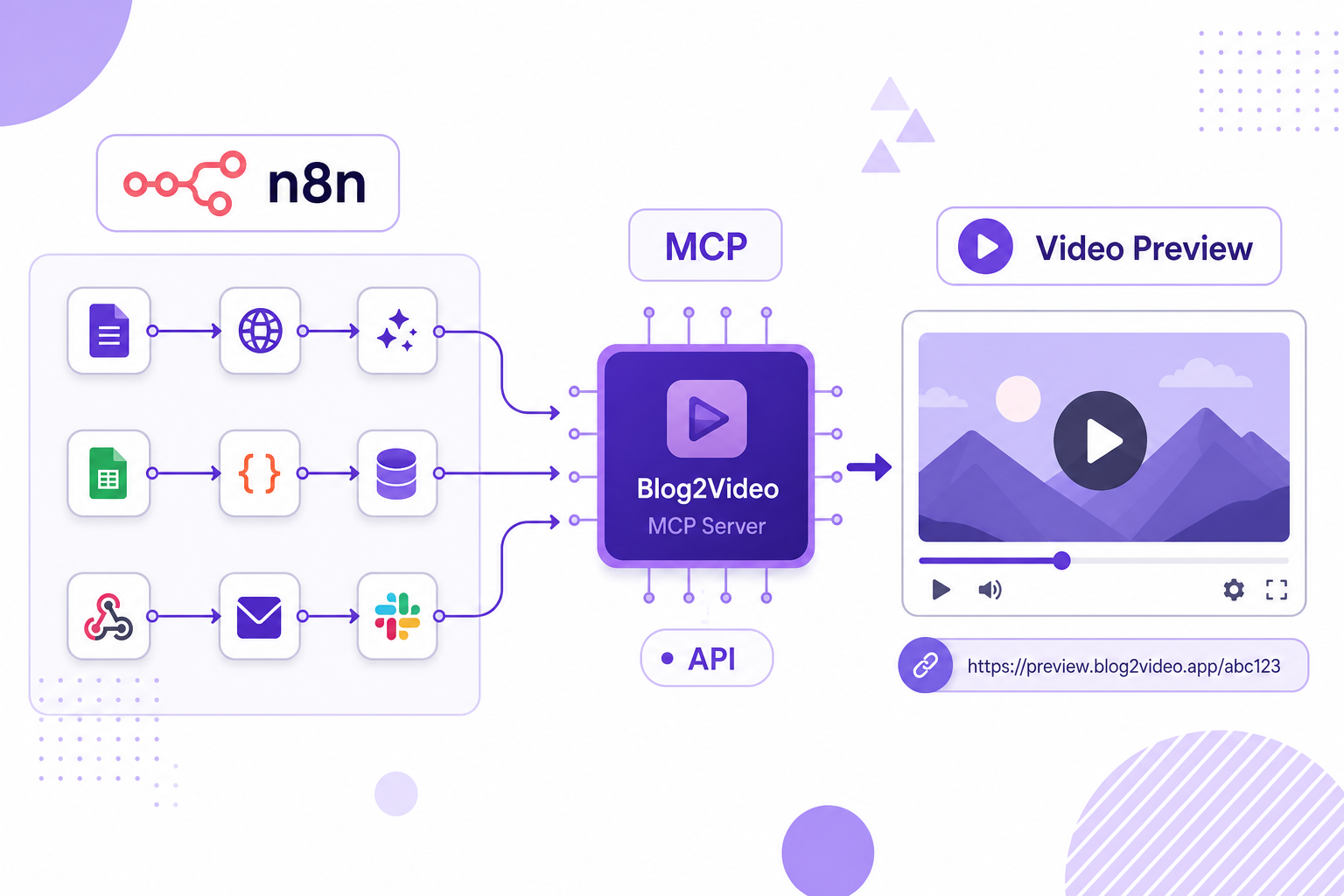
The Blog2Video MCP server exposes every core action — create, preview, render, list templates, list voices — as callable tools. Drop the endpoint into an n8n AI Agent, set the timeout to 600 seconds, and your automation handles the rest.
What is the Blog2Video MCP server?
Model Context Protocol (MCP) is an open standard that lets AI agents call external tools over a standard HTTP transport. Blog2Video exposes its entire video-creation pipeline as an MCP server at https://api.blog2video.app/mcp/sse.
That means any MCP-compatible host — n8n, Claude, ChatGPT, or your own code — can call Blog2Video tools the same way. In n8n specifically, you connect the endpoint to an AI Agent node and the agent decides which tools to call and in what order.
Every call to the server requires an Authorization header: Bearer followed by the JWT you copy from the Connect to AI page in Blog2Video. Without it the server returns 401 and the tool list is empty.
Prerequisites
You need a Blog2Video account and a valid JWT. Get it from Settings → Connect to AI → Connect to n8n → Copy token.
You also need an OpenAI or Anthropic API key for the AI Agent's Chat Model node. The agent will not run without one.
For the dynamic-form example you need the community node n8n-nodes-mcp installed. Go to n8n Settings → Community Nodes → Install and search for n8n-nodes-mcp. The built-in MCP Client Tool node is agent-only; the community node's Execute Tool mode runs standalone so it can feed dropdowns.
- Blog2Video account + JWT from Connect to AI page.
- OpenAI or Anthropic API key for the Chat Model.
- n8n-nodes-mcp community node (Example 2 only).
- n8n workflow timeout raised to at least 600 seconds (Settings → Timeout).
The Blog2Video MCP tools you should know
The MCP server exposes more than a dozen tools but most n8n workflows only need a handful. The three most important are create_video, get_preview_url, and render_video.
create_video takes a blog URL and does everything in one call: it scrapes the article, generates a script, builds scenes, and returns the project. It runs for one to five minutes and blocks internally until done. You do not need a polling loop — just set the node timeout to 600000 milliseconds and wait.
get_preview_url mints a shareable watch link from a project id. render_video converts a generated project to a downloadable MP4 in three to eight minutes, also blocking until complete.
Two data tools are especially useful for building dynamic forms: get_templates_json returns a plain JSON array of template objects, and get_voices_json returns all available voices with their ids. Use these instead of the list_templates and list_voices widget tools, which render interactive galleries for claude.ai and return no usable data in n8n.
- create_video — one call: scrape, script, scenes. Blocks 1–5 min. Returns project id.
- get_preview_url — mint a shareable /preview/<token> link from a project id.
- render_video — produce a downloadable MP4. Blocks 3–8 min.
- get_templates_json — plain JSON template list for dropdowns.
- get_voices_json — plain JSON voice list with voice_id values.
Example 1: chat to preview URL (the simplest setup)
The first example is a single Chat Trigger connected to a single AI Agent. The user pastes a blog URL in the chat; the agent calls create_video, then get_preview_url, and replies with the preview link.
Configure the Chat Trigger with default settings and connect it to an AI Agent. In the agent's System Message tell it to call create_video with the user's URL, take the project id from the result, call get_preview_url, and reply with only the preview URL. Set Max Iterations to 10.
Attach a Chat Model sub-node using your OpenAI or Anthropic key. Attach an MCP Client Tool sub-node with Transport set to HTTP Streamable, Endpoint URL https://api.blog2video.app/mcp/sse, Authentication Bearer Auth with your JWT, Tools to Include set to Selected with create_video and get_preview_url ticked, and Timeout set to 600000.
Keep Tools to Include on Selected, not All. On All the agent may call setup_video — a claude.ai widget tool — and stall forever waiting for a gallery click that never comes in n8n.
Example 2: dynamic form with template, voice, preview, and render
The second example is a multi-page form where the user picks a template and voice from live dropdowns, sees the preview URL inline, and chooses whether to render an MP4.
The flow is: Form page 1 captures the blog URL. Two standalone MCP Execute Tool nodes call get_templates_json and get_voices_json. A Code node parses both responses and builds the dropdown definitions plus a voice-name-to-id map. Form page 2 shows the dynamic dropdowns. A Set node resolves the chosen voice name to its voice_id. An AI Agent calls create_video and get_preview_url and writes the result through a Structured Output Parser. Form page 3 shows the preview URL and asks whether to render. An IF node branches to either a second AI Agent that calls render_video, or a final form ending that shows the preview link only.
The most important technical detail is that any field in n8n that uses the {{ }} expression syntax must be switched to Expression mode. In Fixed mode, curly braces are treated as literal text. This applies to the Form Fields JSON field on page 2, all Set node expressions, and every Prompt field on the agent nodes.
Node names matter because n8n's $('Name') selector matches by exact title. If you rename Get Templates to Fetch Templates your Build Form code node will throw a referenced node doesn't exist error. Use the names listed in the setup exactly.
- Both MCP Client Tool nodes need Timeout 600000 — create_video and render_video each run for minutes.
- Use get_templates_json and get_voices_json, not list_templates or list_voices.
- The Structured Output Parser forces a clean { project_id, preview_url } shape — without it the agent may return markdown tables.
- Raise the workflow-level timeout in Settings → Timeout so render_video is not cut off.
- Test the form via the Production or Test URL, not the editor — form pages do not render inside the n8n canvas.
Frequently Asked Questions
Where do I get the Blog2Video JWT for n8n?
Log in to Blog2Video, go to Settings → Connect to AI → Connect to n8n, and click Copy token. Paste that value as the Bearer token in your MCP Client Tool node credential.
Why does create_video time out in n8n?
The default MCP Client Tool timeout is around 60 seconds. create_video can take one to five minutes. Set the node's Timeout option to 600000 (ten minutes) to avoid MCP error -32001.
Why are the template and voice dropdowns empty in Example 2?
This usually means the community node returned data in an unexpected shape, or a node was renamed. The node names Get Templates and Get Voices must match exactly — case-sensitive — in the Build Form code node.
Can I skip get_preview_url and just use the project id?
No. The preview URL is not stored on the project object. You must call get_preview_url with the project_id to mint the shareable /preview/<token> link.