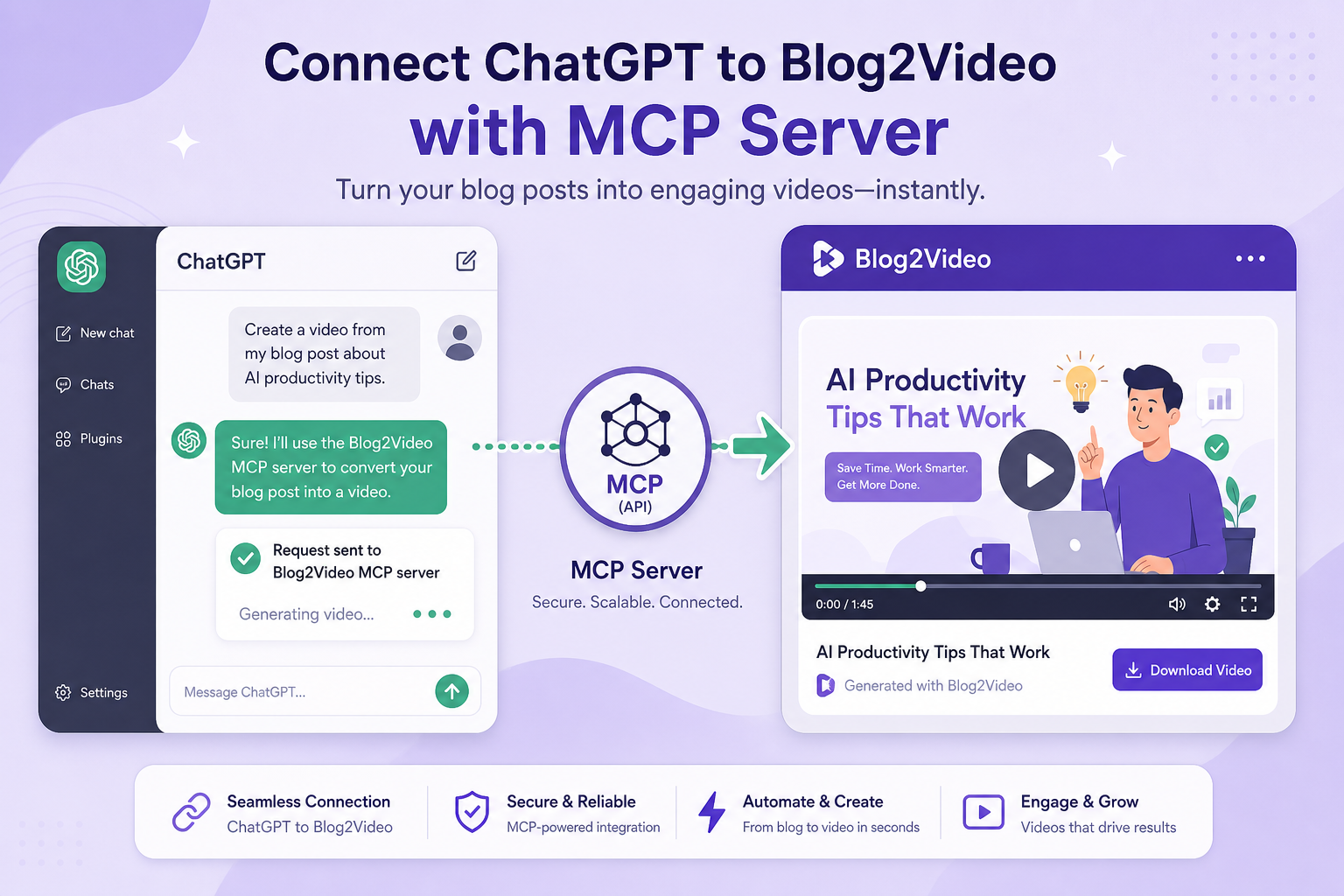
Integration guide
Use ChatGPT as the brain behind your blog-to-video pipeline.
ChatGPT's MCP connector support lets you point it at the Blog2Video server and let GPT-4o handle the rest — scrape the article, pick a template, generate scenes, and return a shareable preview link, all from a single chat message.
What is MCP and why ChatGPT supports it
Model Context Protocol is an open standard that lets AI models call external tools over a standard HTTP transport. Rather than building a custom plugin for every application, a service publishes one MCP server and any compatible AI host can use it.
OpenAI added remote MCP support to ChatGPT in 2025 and expanded it throughout 2026. ChatGPT can now talk to any HTTP Streamable or SSE MCP endpoint directly — no middleware, no custom plugin review, and no backend code on your side.
Blog2Video publishes its full video pipeline as an MCP server at https://api.blog2video.app/mcp/sse. Connect that endpoint to ChatGPT and you can turn any blog URL into a finished video just by chatting.
What the Blog2Video MCP server does
The server exposes the complete Blog2Video pipeline as callable tools. The two most useful ones in ChatGPT are create_video and get_preview_url.
create_video takes a blog URL and handles everything: it scrapes the article, writes a narrated script, generates scene layouts, and returns a project with a unique id. It runs for one to five minutes because it is doing real work.
get_preview_url takes the project id and returns a shareable /preview/<token> link you can open in any browser. If you want a downloadable MP4 you can also call render_video, which takes three to eight minutes.
Prerequisites
You need a ChatGPT Plus, Pro, Team, or Enterprise account. Free plan users do not have access to the MCP connector configuration.
You need a Blog2Video account and a valid JWT. Get it from Blog2Video → Settings → Connect to AI → Copy token.
- ChatGPT Plus, Pro, Team, or Enterprise subscription.
- Blog2Video account with a copied JWT token.
- A blog URL you want to convert.
Step-by-step: connect Blog2Video to ChatGPT
Open ChatGPT and go to Settings. Find Apps & Connectors → Advanced settings and toggle Developer Mode to ON. This unlocks the custom connector configuration screen.
Navigate to Settings → Connectors → Create. Enter the endpoint URL: https://api.blog2video.app/mcp/sse. Set authentication to Bearer Auth and paste your Blog2Video JWT as the token. Save the connector.
Start a new conversation. Click the connector toggle to enable it for this chat. You will see the Blog2Video tools listed as available.
Now type your request — for example: Turn this blog into a video and give me a preview link: https://example.com/my-post. ChatGPT will call create_video, wait for it to finish, then call get_preview_url and return the link.
- Settings → Apps & Connectors → Advanced settings → Developer Mode ON.
- Settings → Connectors → Create → paste the Blog2Video endpoint URL.
- Authentication: Bearer Auth → paste your JWT.
- Enable the connector per conversation using the toggle in the chat interface.
What you can do with Blog2Video inside ChatGPT
Beyond the basic blog-to-preview flow, you can use ChatGPT's reasoning to make smarter decisions about template and voice. Ask it to pick the most appropriate template for a finance article from the available list, or choose a voice that matches a professional tone.
You can also chain calls: create the video, review the scene descriptions, ask ChatGPT to rewrite a specific scene using update_scene, then get a new preview — all in one conversation.
For high-volume use, you can ask ChatGPT to call render_video after previewing so you end up with a downloadable MP4 in a single session.
Frequently Asked Questions
Does the Blog2Video MCP server work with the ChatGPT free plan?
No. MCP connectors require Developer Mode, which is available on Plus, Pro, Team, and Enterprise plans only.
Why does ChatGPT take several minutes to respond after I give it a blog URL?
create_video runs for one to five minutes because it is actually scraping your article, writing a script, and generating scenes. This is expected. ChatGPT holds the connection open until the tool returns.
Can I use the Blog2Video MCP server with the OpenAI API directly?
Yes. The Responses API supports remote MCP servers. Add the Blog2Video endpoint in the tools parameter with type mcp and your Bearer token. The API will list available tools and let your code call them.