Integration guide
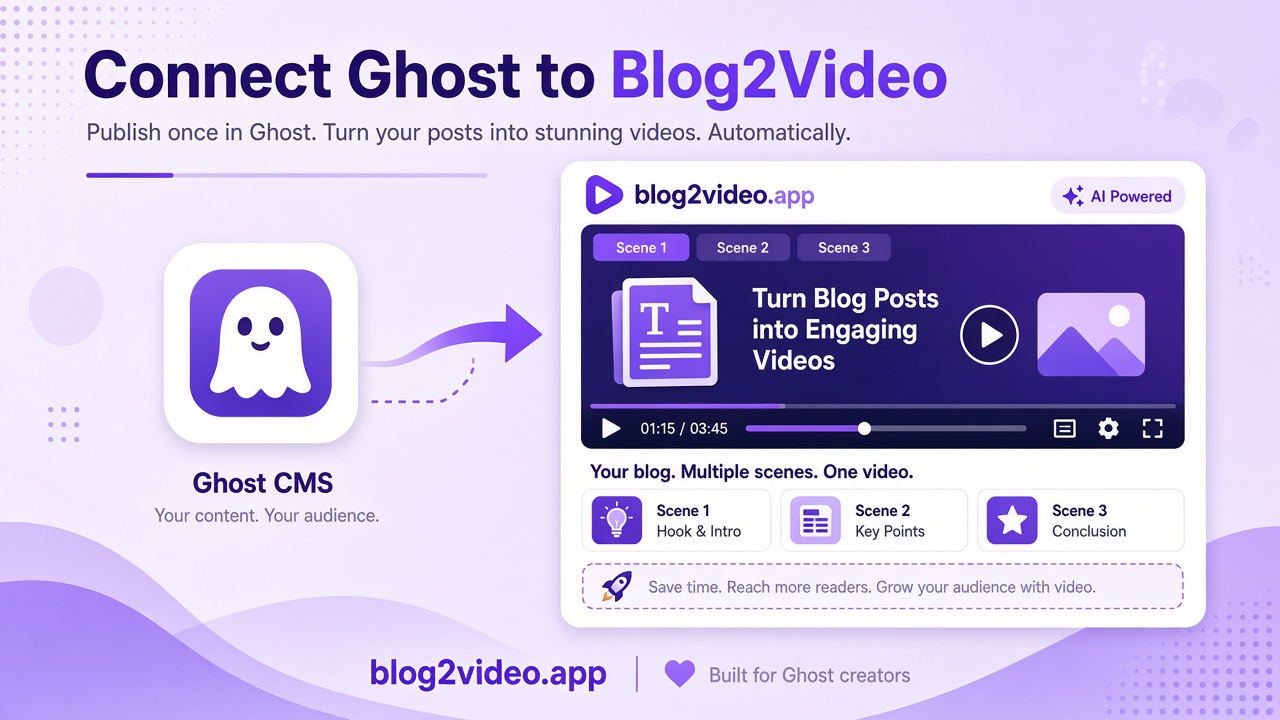
Connect Ghost to Blog2Video — every post is one click from becoming a video
Add a custom integration in Ghost Admin, paste the key into Blog2Video, and every post on your site — published or draft — shows up ready to turn into a video. Connect once, and it's done.
Turn every Ghost post into a video, without copying links
If your blog runs on Ghost, you can connect it to Blog2Video once and then pull any post — published or draft, members-only included — straight into a new video project. No copying URLs, no exporting content by hand.
It takes five steps: add a custom integration in Ghost, copy the Admin API key, paste it into Blog2Video, pick your posts, and send the finished video back to Ghost.
- Step 1: Add a custom integration in Ghost Admin
- Step 2: Copy the Admin API key and site URL
- Step 3: Paste & connect in Blog2Video
- Step 4: Pick your posts — drafts included
- Step 5: Send the finished video back to Ghost
Step 1: Add a custom integration in Ghost
In Ghost Admin, go to Settings → Integrations → Add custom integration, and name it Blog2Video.
A custom integration gives Blog2Video its own set of credentials, scoped to your site, separate from any other app you've connected.
Step 2: Copy your Admin API key
Once the integration is created, Ghost shows an Admin API key and your site's API URL. Copy both — that's what lets Blog2Video read your posts.
Step 3: Paste & connect in Blog2Video
Back in Blog2Video, open the Connect tab, choose Ghost, paste your site URL and key, and hit Connect.
Your key is stored encrypted, so it's never exposed in plain text after you save it.
Step 4: Pick your posts
Click + New, open the Connect tab, and every Ghost post is right there — drafts and members-only posts included.
Tick one post or several; each one becomes its own video, so you can batch through a backlog in one pass instead of creating projects one link at a time.
Step 5: Send the video back to Ghost
Once your video is ready, click the Ghost icon. Add it to a new draft or to the original post, at the top or bottom.
You can upload the file straight to Ghost, or use an embedded player instead if your Ghost plan caps uploads.
Watch the walkthrough
The full five-step setup is also on video, chapter by chapter — from adding the integration in Ghost to publishing the finished video back to your post.
Why connect once instead of pasting links
Without a connection, turning a post into a video means opening the post, copying the URL, switching tabs, and pasting it into a new project — every single time, and it doesn't work at all for drafts or members-only content that isn't publicly reachable.
Connecting Ghost removes that friction permanently. Every post, including the ones you haven't published yet, is visible inside Blog2Video's project creator, and the finished video can go straight back to the same post it came from.
Frequently Asked Questions
Does Blog2Video work with Ghost drafts and members-only posts?
Yes. Once your Ghost site is connected, drafts and members-only posts show up in the Connect tab alongside published posts, so you can turn any of them into a video.
Is my Ghost Admin API key stored securely?
Yes. Blog2Video stores the key encrypted after you connect, and it's only used to read post content and to publish videos back to your site.
Can I send a finished video back to more than one place in a Ghost post?
Yes. When you click the Ghost icon on a finished video, you can add it to a new draft or the original post, at the top or the bottom.
What if my Ghost plan limits file uploads?
Use the embedded player option instead of uploading the file directly. It links to the hosted video rather than uploading the MP4 into your Ghost media library.
Do I need to reconnect every time I want to make a video from a new post?
No. The Ghost connection is one-time setup. After that, every current and future post on the site is available in Blog2Video's project creator.