Integration guide
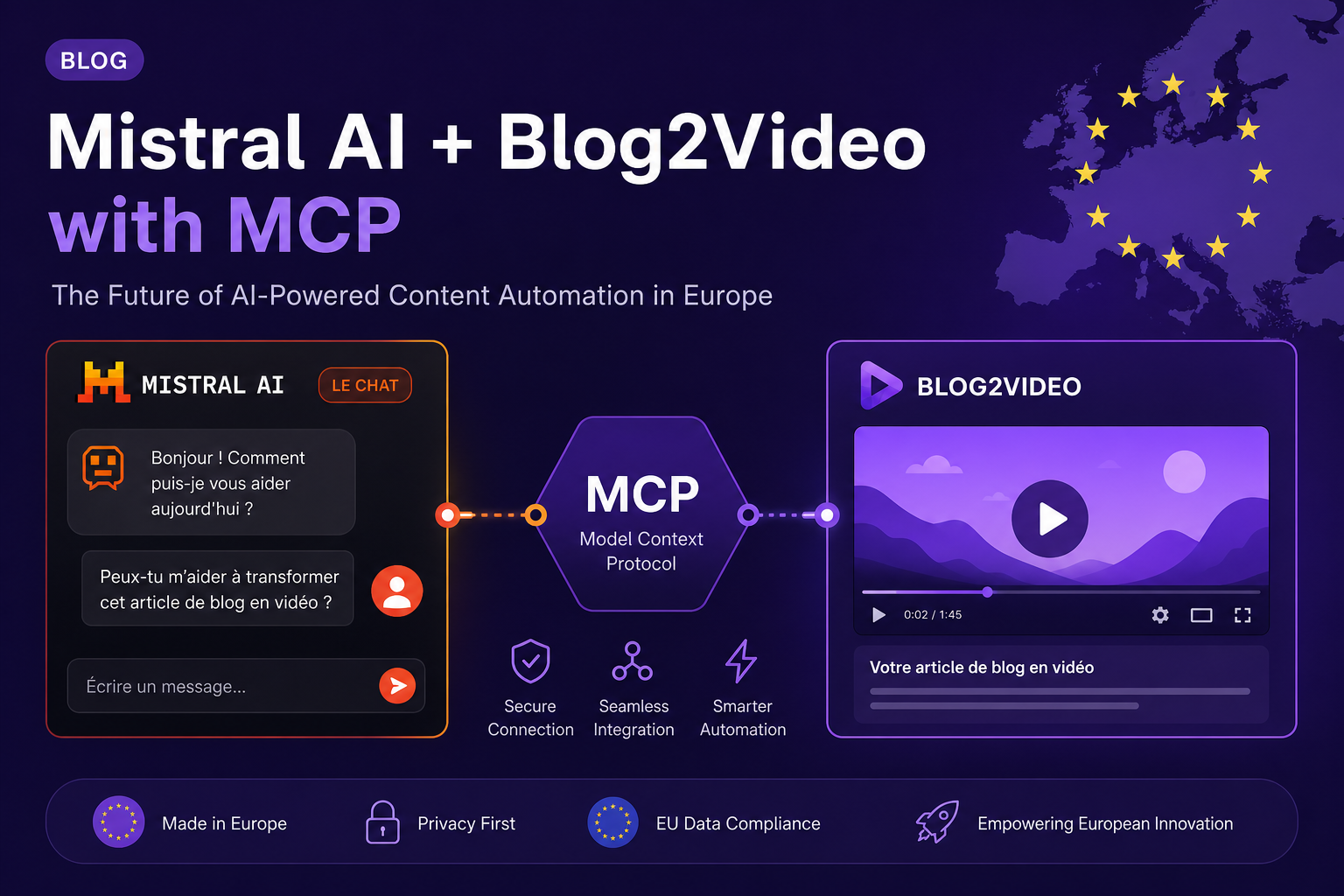
Mistral plus Blog2Video MCP: European-grade AI, real video output.
Mistral AI has one of the cleanest MCP connector experiences available. Add Blog2Video from Le Chat's connector directory, from Mistral Studio, or via the API — and immediately use it with any Mistral model or agent.
Mistral and MCP: a first-class connector experience
Mistral AI introduced MCP connector support in Le Chat and Mistral Studio in 2025 and extended it to the API in 2026. Connectors are registered MCP servers that you can use as tools in conversations, agents, and API calls — without managing MCP transport locally.
Mistral's implementation is notably clean: you add a URL and auth token, click Connect, and the platform detects authentication requirements automatically. All connected servers are also available via the SDK with no extra configuration.
What the Blog2Video MCP server does
The Blog2Video MCP server at https://api.blog2video.app/mcp/sse exposes the full video-creation pipeline as callable tools. Give Mistral a blog URL and it can call create_video to scrape the article and generate scenes, get_preview_url to mint a shareable watch link, and render_video to produce a downloadable MP4.
Authentication is a Bearer JWT from Blog2Video's Connect to AI page. Mistral's platform handles the token storage and injection automatically once you configure the connector.
Method 1: Le Chat connector directory
In Le Chat, click the + Add Connector button on the right side of the page. This opens the MCP Connectors directory. If Blog2Video is listed, click it and follow the token prompts.
If Blog2Video is not yet in the directory, click Add custom connector. Enter a connector name such as blog2video, the server URL https://api.blog2video.app/mcp/sse, and paste your JWT as the Bearer token. Click Connect — Mistral detects the auth method and completes the connection.
- + Add Connector → MCP Connectors directory → search Blog2Video.
- Or: + Add Connector → Add custom connector.
- Server URL: https://api.blog2video.app/mcp/sse.
- Auth: Bearer token → paste your JWT.
- Click Connect.
Method 2: Mistral Studio
In Mistral Studio (Intelligence → Connectors), click Add connector and select the Add custom connector tab. Enter the same URL and token. The connector becomes available in all Studio conversations and in your Mistral agents.
Once connected, create an agent in Studio and add Blog2Video as a tool. The agent will call Blog2Video tools in response to user messages that include a blog URL.
Method 3: Mistral API and SDK
All Mistral connectors — built-in and custom — are available via the Mistral API and Python or JavaScript SDKs. Reference your Blog2Video connector by name in the tools parameter of any chat completion call.
This is the right path for production integrations where you want Mistral's reasoning combined with Blog2Video's video pipeline in a server-side workflow. No chat interface required.
Frequently Asked Questions
Does Blog2Video appear in Mistral's built-in connector directory?
Check the current directory at mistral.ai. If it is not listed yet, use the custom connector path — the URL and Bearer token setup takes under two minutes.
Can I use Blog2Video connectors inside Mistral agents?
Yes. Any connector you add in Mistral Studio or Le Chat can be assigned to an agent as a tool. The agent will call Blog2Video tools automatically when a user provides a blog URL.
Which Mistral model should I use for blog-to-video workflows?
Mistral Large or Mistral Medium work well for multi-step agentic workflows. Mistral Small is faster and cheaper if your prompt is explicit about which tools to call.