Integration guide
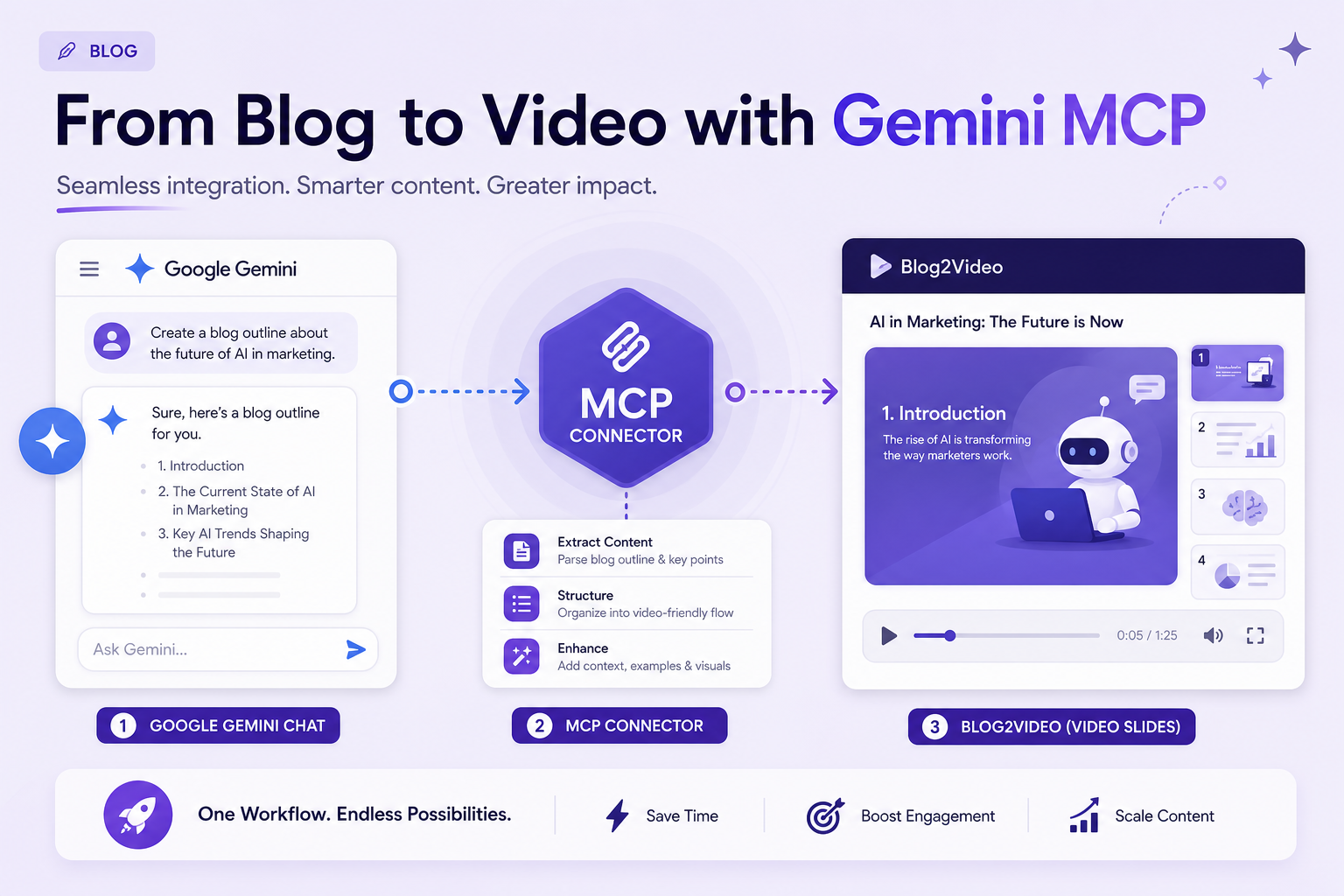
Gemini plus Blog2Video MCP: add video creation to Google's AI in three steps.
Google Gemini supports MCP through the Gemini CLI, Firebase Studio, and Gemini Enterprise. All three can talk to the Blog2Video MCP server. Pick the path that matches your stack and let Gemini handle article scraping, script generation, and video preview from a single prompt.
Gemini and MCP: Google's open-standard support
Google adopted MCP across its AI tooling in 2025 and 2026, adding support to Gemini CLI, Firebase Studio, and Gemini Enterprise. All three surfaces use the same mcpServers configuration block, so connecting Blog2Video works the same way regardless of which one you use.
MCP acts as a bridge between Gemini's reasoning engine and external services. When you add the Blog2Video endpoint, Gemini can discover its tools, understand their parameters, and call them in response to natural-language requests — with no custom code needed on your side.
What the Blog2Video MCP server does
The server exposes the full Blog2Video pipeline as tools: create a project from a blog URL, get a shareable preview link, render a downloadable MP4, list templates and voices, and edit individual scenes. Every tool is callable over HTTP with a Bearer token.
The endpoint is https://api.blog2video.app/mcp/sse and it uses the SSE transport — the same transport the Gemini CLI and Firebase Studio expect. Your JWT from the Blog2Video Connect to AI page is the auth token.
Method 1: Gemini CLI
Gemini CLI stores its MCP configuration in a settings.json file. Add a mcpServers block with an entry for blog2video, specifying the server URL as https://api.blog2video.app/mcp/sse and the auth header as Authorization: Bearer followed by your JWT.
After saving the config, restart Gemini CLI. The Blog2Video tools will appear as available. You can enable or disable the server during a session with /mcp enable blog2video and /mcp disable blog2video.
If you are using environment variables for secrets, add the JWT to the env property of the server configuration and reference it in the header value.
- Add a blog2video entry to the mcpServers block in settings.json.
- Server URL: https://api.blog2video.app/mcp/sse.
- Auth header: Authorization: Bearer followed by your JWT.
- Restart CLI, then confirm tools with /mcp enable blog2video.
Method 2: Firebase Studio
In Firebase Studio's Code view, open the Command Palette with Shift+Ctrl+P and run Firebase Studio: Add MCP Server. Enter the Blog2Video endpoint URL when prompted.
Alternatively, create or edit the .idx/mcp.json file in your project directory manually, adding a blog2video entry with the same URL and Authorization header.
The MCP server becomes available in the interactive chat panel. Click Customize Tools to see and enable Blog2Video tools.
Method 3: Gemini Enterprise
In the Google Cloud console, go to Gemini Enterprise → Connectors → Custom MCP Server. Enter the Blog2Video endpoint URL and your JWT. The connector integrates directly into the Gemini Enterprise data-source model.
Once connected, Gemini Enterprise can access Blog2Video tools alongside your internal data sources. This is useful for teams that want to include video creation in a larger AI-powered workflow that also reads from private databases or internal APIs.
Frequently Asked Questions
Which Gemini surface should I use for Blog2Video?
For individual developer use, Gemini CLI is the fastest path. For web-app or IDE use, Firebase Studio is the right choice. For enterprise teams, Gemini Enterprise gives centralized connector management.
Do I need to store my JWT as a plain-text environment variable?
The Gemini CLI does not redact env values automatically. Store the JWT in an environment variable outside the config file and reference it there, or use a secret manager if security is a concern.
Does the SSE transport work with all Gemini surfaces?
Yes. The Blog2Video MCP endpoint uses SSE transport, which is supported by Gemini CLI, Firebase Studio, and Gemini Enterprise. You do not need to configure a different transport for each.